
TUTORIAL – MONITORING A COMPANY
Monitoring allows you to track changes affecting a customer, supplier or competitor. Once a company is being monitored, notifications can be sent when a change occurs in its report.
1. Monitor a company
Step 1 – Search for the company
Log in to your Creditsafe account and search for the relevant company.
Then open its company report.
Step 2 – Enable monitoring
In the report:
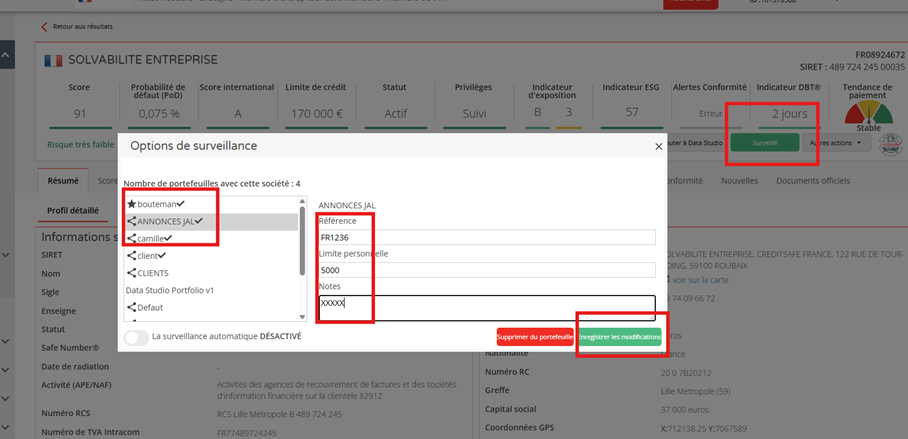
- Click the “Monitor” button in the report header.
- A window opens.
- Select the portfolio to which you want to add the company.
- You can also add notes or additional information.
Step 3 – Check that monitoring is active
Once the company has been successfully added, the button turns green and displays “Monitored”.
NOT MONITORED

MONITORED

Please note: automatic monitoring can be enabled or disabled. When enabled, companies whose reports you view may be automatically added to the default portfolio.
2. Create a monitoring portfolio
You can create multiple portfolios to organise your companies.
In the menu on the left:
Credit Risk → Monitoring → Portfolio → Add a Portfolio
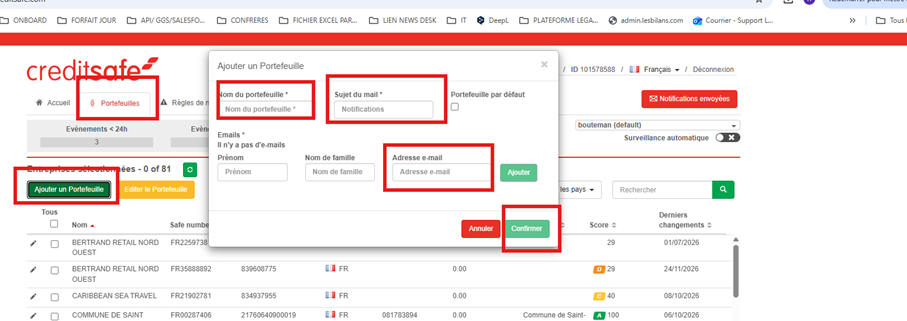
You can then configure the portfolio and the email addresses that will receive alerts. A portfolio can also be set as the default portfolio for automatic monitoring.
3. Configure alerts
You can customise alerts for each portfolio.
- Go to Monitoring → Settings.
- Select the relevant portfolio.
- Open “Alert Rules”.
- Set the rules you want to apply.
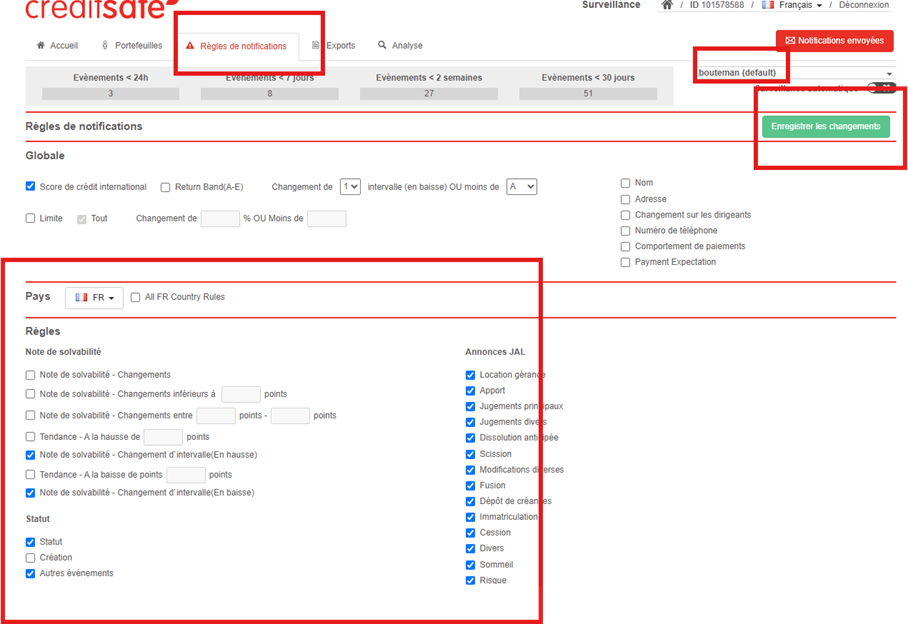
Settings must be configured for each portfolio individually. Two types of configuration are available: Global, to apply settings across the countries included in the portfolio, and Local, to manage country-specific rules.
In the portfolio settings, you can also change its name or language and add or remove email addresses for alert recipients.
4. Monitor multiple companies at once
For a large list of companies, you can perform a bulk import.
Go to:
Credit Risk → Monitoring → Portfolio → Import
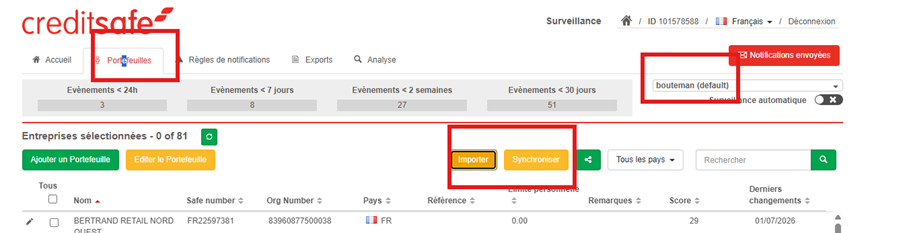
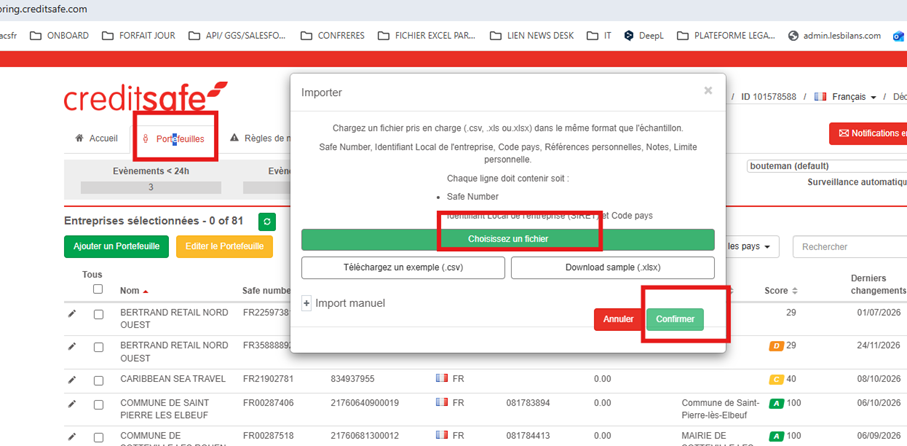
Two methods are available:
- CSV file import: select the prepared file, then click “Confirm”.
- Manual import: enter a list of SAFE Numbers or company identifiers, depending on the available countries.

Once a CSV file has been processed, an email is sent with the import results. Companies successfully added to the portfolio can then generate monitoring notifications.
⚠️ Import or Synchronise: understand the difference
Import adds new companies to the existing portfolio.
Synchronise performs a “cancel and replace” operation on the existing file, and the internal procedure states that this operation is irreversible. It is therefore recommended that you export the data before any synchronisation.